
Let Sollestro build a draft video edit in DaVinci Resolve.
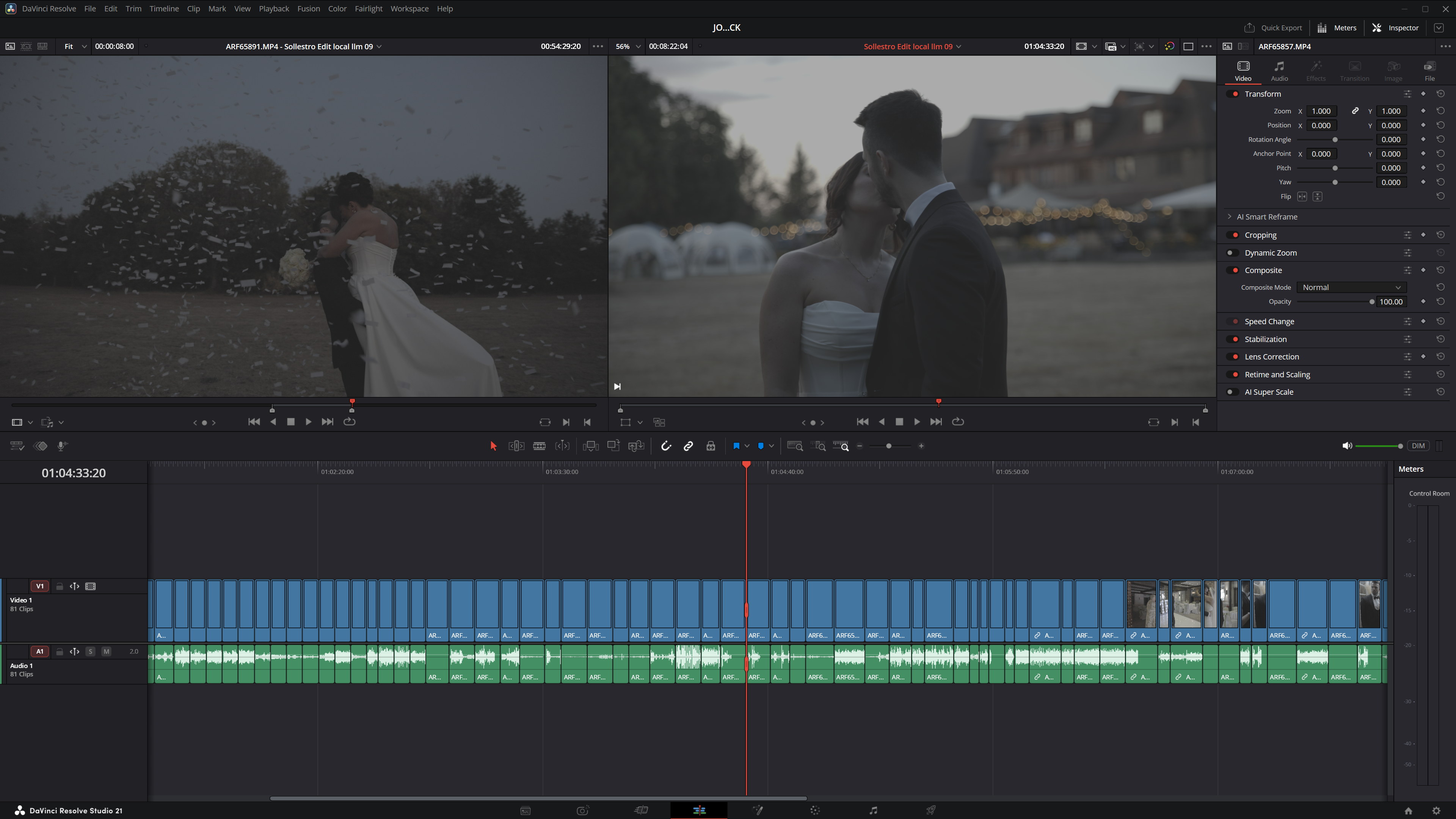
Choose the clips in your DaVinci Resolve Studio project. Describe the video you need in ordinary language. Sollestro examines those clips with an AI model on your computer and builds a new timeline you can edit in Resolve. You review and finish the video.
How Sollestro edits your video
Choose the clips. Use the whole Resolve project or select particular Media Pool folders. Sollestro tries to examine every readable clip you included.
Describe the video. State its purpose, length, order, essential people or scenes, and what to leave out. Write the instructions yourself or use Prompt Builder, then check them.
Build the draft edit. AI Edit examines clips it has not analysed before and creates a timeline in the open Resolve project. The Log shows its progress and any files it could not read.
Review and finish it. Watch the whole timeline. Change shots, speech, timing, music, sound and colour in Resolve before anyone else sees it.
Stuck on a step? Ask the Sollestro assistant, the chat button at the bottom right of every page.
Video tools you can use
Interviews and speech: Put interview clips in your Speech Bins and keep Use Resolve subtitle track ticked. Sollestro reads what is said from Resolve's subtitles, so it can plan interview-led edits and cut speech on whole sentences. Build Subtitles makes subtitles for the timeline open in Resolve when it has none.
Long takes: Clips longer than two minutes, interviews included, are analysed in one-minute parts with sentences kept whole, so any part of a long take can be used.
B-roll cutaways: B-roll Cutaways lays B-roll over the talking on the timeline open in Resolve, on the first empty video track above V1. It reads what is said from the timeline's subtitles, keeps the speaker on camera for the lines that matter and picks shots that fit the words. Name the moments to keep on camera, paste exact subtitle lines, or ask for no gaps. Review the timing and whether each image supports the words.
Music: Turn on Beat Sync, choose a track and click Auto Detect for the tempo and first beat, or type your own. Cuts land every 1, 2, 4 or 8 beats, important shots run longer, and the film runs as long as the song unless your brief sets a length. You decide where a different rhythm serves the film better.
Another version: Change the brief and use AI Edit Only on the existing analysis to explore another first cut. Run the same job again and Sollestro may loosen a few of its own working rules for that run, naming each one in the Log. Re-analyse only when the source descriptions need refreshing.
Your standards and style: Load the Videography Knowledge file closest to the job, one of 61 genres included. Learn My Style saves your editing style from a finished timeline, and Active Learning remembers standing preferences from your briefs.
Edited footage: An edited film can be analysed as separate detected shots for remix work. Check the detected boundaries and the resulting edit.
Want step-by-step help with any of these tools? Ask the Sollestro assistant.
There are no video tutorials yet, so the assistant gives step-by-step guides instead. Pick one: analyse your clips · write a brief from a template · make your first AI Edit · use interviews · add B-roll cutaways · keep moments on camera · cut to music · make another version · remix an edited film · teach it your style · get a review of the shoot.
Full video editing feature list
- Use every clip in the Resolve project or select only the bins you want.
- Load the Videography Knowledge file closest to the job, from 61 genres included.
- Examine sampled frames from selected clips and use available transcript text.
- Analyse clips longer than two minutes in one-minute parts, with sentences kept whole.
- Read a Shoot Summary of the whole shoot, in shooting order.
- Show unreadable clips and processing progress in the Log.
- Write editing instructions in ordinary language, including subject, length, sequence and exclusions.
- Start from the AI Edit Template or the B-roll Cutaways Template.
- Use Prompt Builder to develop rough notes into instructions you can inspect and change.
- Run the gold AI Edit button once to analyse, build the prompt and edit, unattended.
- Build a new, editable timeline in your open DaVinci Resolve Studio project.
- Read speech from Resolve's subtitles and cut it on whole sentences.
- Ask for interviews, particular speakers or statements when the source material and transcripts support them.
- Lay B-roll over the talking on the first empty track above V1, matched to what is said.
- Keep chosen moments or exact subtitle lines on camera during B-roll Cutaways.
- Cut to a music track with Beat Sync, using Auto Detect or your own tempo and first beat.
- Change the instructions and build another version from saved analysis.
- Analyse a finished video as separate shots when you want to remix it.
- Teach Sollestro your editing style with Learn My Style and Active Learning.
- Get a written review of the analysed footage from Judge Me.
- Stop a run, inspect the Log and return to saved work where supported.
- Make all final editorial and technical changes in Resolve.
The result: an editable Resolve timeline
A new timeline in your open Resolve project. It contains clips from your own media and can be changed with the normal Resolve editing tools. Check the complete video before you send it to a client.
What you need for video editing
Video editing needs DaVinci Resolve Studio 21 or newer, with External Scripting set to Local, and a Videography Knowledge file loaded in Sollestro. Local model packages are downloaded separately after installation. If your footage requires proxies for analysis, prepare those in Resolve. Close a loaded high-resolution timeline during Local processing if graphics memory is tight.
Not sure your computer or Resolve setup is ready? Ask the Sollestro assistant.
Footage and cameras
Sollestro works from clips in the selected Resolve project or bins. The media must be readable in Resolve and available to Sollestro for frame extraction. Some high-resolution or RAW footage may need proxies for analysis. Check the Log for any clip that could not be read before relying on the first cut. This is a practical media-compatibility check, not a promise that every camera file will work unchanged.
Unsure whether your camera files will work? Ask the Sollestro assistant.
Questions
Does it upload my footage?
Local AI processing runs on your machine. Model downloads and licence checks still use the internet.
Do I have to log every clip or write timecodes?
No. Select the scope, provide the brief and let Sollestro analyse the footage. For interview-led work, put the interview clips in your Speech Bins and keep Use Resolve subtitle track ticked.
Does every cut land on the music beat?
Beat Sync is optional. When it is on, cuts land on the beat, every 1, 2, 4 or 8 beats as you choose. If the detected tempo is half or double the real one, type the BPM yourself. Review the result.
Can I still change everything?
Yes. The result is an editable Resolve timeline. The first cut is a starting point for your editorial judgement.
Another question? Ask the Sollestro assistant. It knows every button and setting in Sollestro 3.1 Beta.
Read more: How to download a Local AI model · Compare Sollestro with other tools.