Sollestro 3.1 Beta is here, free for 30 days.
Get the free beta · What's new · Step-by-step help from the assistant
Free for 30 days with the 3.1 Beta. $199 one-off licence, all future major versions included.
Sollestro is an AI photo selector for photographers that runs on Local AI: a local LLM on your own computer, not in the cloud. Choose a folder of photos, or photos in a DaVinci Resolve Studio project, and describe the people, moments and kinds of images your client needs. Sollestro marks which photos to keep, reconsider or set aside, and you review and change the choices.
Because the AI is local, there is no per-photo fee and no credits to buy, and your photographs and brief stay on your computer. You can work from a folder without Resolve or another photo catalogue. You only need the internet to download the AI model and to check your licence.
Windows x64 or Apple Silicon Mac (macOS 13 or newer). Folder selection does not require Resolve. Resolve photo selection requires DaVinci Resolve Studio 21 or newer.
The one-off licence includes all future major versions. You can select another shoot or revise a selection without buying AI credits for each photo.
The Local AI model examines photo previews and your brief on your machine. Model downloads and licence checks still need an internet connection.
Sollestro works through every readable photo you include, rather than making a judgement from a small selection of the job. Check the Log for any photo it could not read.
Tell Sollestro who and what must appear, how many photos you are aiming for, where you need variety and what to set aside. It makes a project-specific selection.
Sollestro can select directly from an ordinary folder. You can then review ratings and colour labels in compatible photo software.
Write a different brief for a wedding, portrait session, event, product, property or sports job, and load the matching Photography Knowledge file, one of 51 genres included. The selection follows the work you are delivering.
Sollestro assesses the selected photos and produces marks you can review. You spend your time checking coverage and making the final gallery stronger.
Lucian Paraian designed Sollestro from experience photographing and delivering client work, including the need to review large shoots without losing important moments.
The output is a set of marks you can change. Sollestro does not delete rejected photos. It learns from your changed marks only when you click Learn, and any standing preference it picks up from your briefs is announced in the Log and can be undone.
Wondering whether Sollestro suits your kind of shoot? Ask the Sollestro assistant, the chat button at the bottom right of every page.
Select from a folder or from photos already in Resolve. Both routes use the same project-specific brief and Local AI model.
No video tutorials yet, so the Sollestro assistant walks you through any of these step by step. Pick one: analyse your photos · write a brief from a template · make your first selection in Resolve · select from a folder with XMP · find specific photos · pick highlights · undo the marks · teach it from your corrections · straighten photos · resize photos · get a review of the shoot.
Photo selection in Resolve · Download a Local AI model · Windows guide · Apple Silicon Mac guide · Ask the assistant how any feature works
Install the 3.1 Beta, enter your free beta key or licence key, then download a compatible AI model from Model Packages. Check the app's advice for your computer.
Select a folder on your computer, or open a Resolve Studio 21 project containing the photos and choose the relevant Media Pool folders. Load the Photography Knowledge file closest to the shoot: Sollestro needs one before it analyses or selects.
State its purpose, target size, important people or moments, variety and what should be set aside. Read and change the instructions before selecting.
Sollestro analyses selected photos it has not already saved and marks each readable item as keep, maybe or reject. Check the Log for files it could not read.
In the folder route, open the ratings and labels in compatible photo software. In Resolve, inspect flags and the Keepers bin. Change choices before delivery.
RAW ratings and labels are saved beside the original files as XMP sidecars. For supported JPEG, TIFF and PNG files, Sollestro can write the metadata into the image file. How to download a Local AI model · Stuck on a step? Ask the Sollestro assistant, which knows every button and setting in 3.1 Beta, or have it walk you through your first selection step by step.
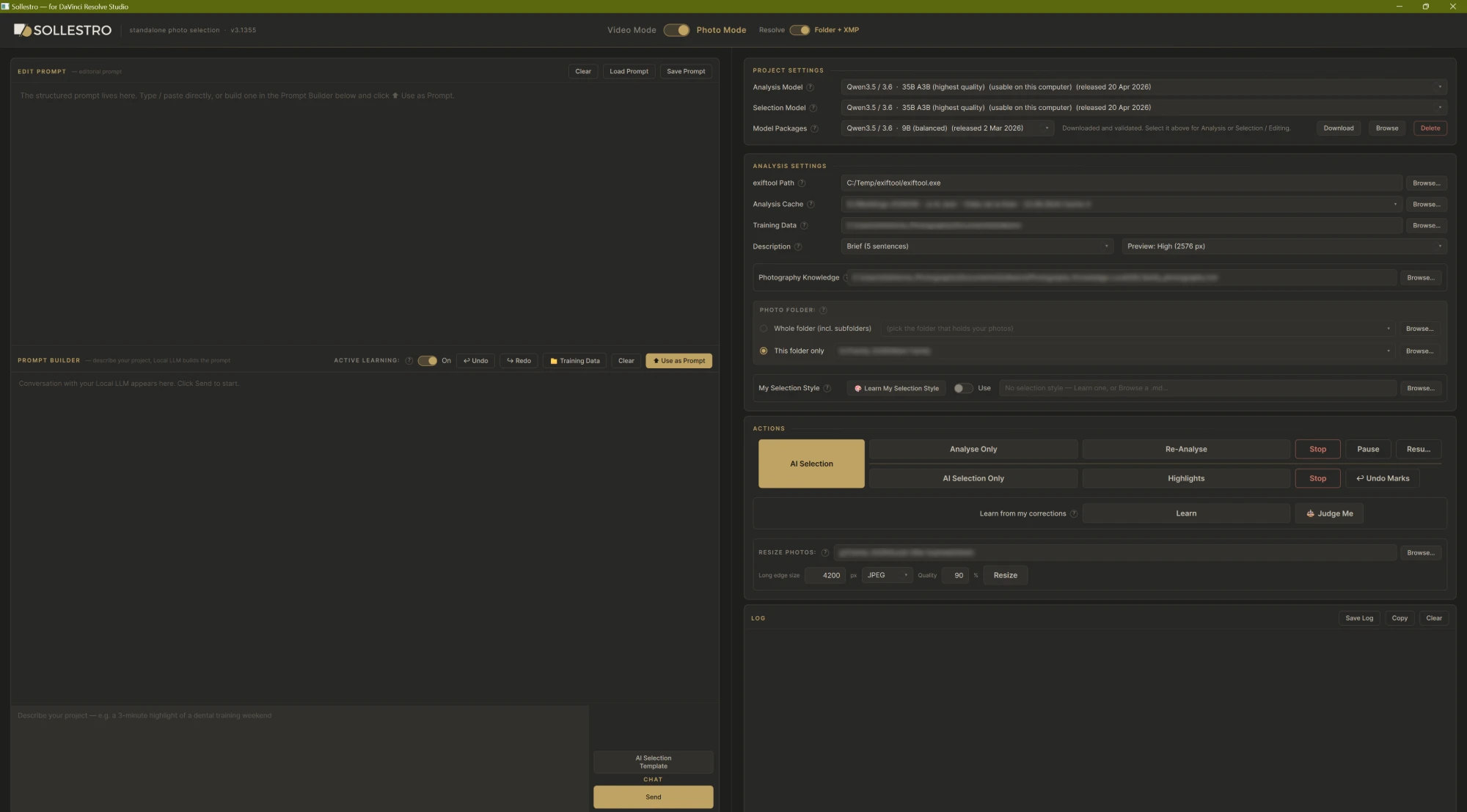
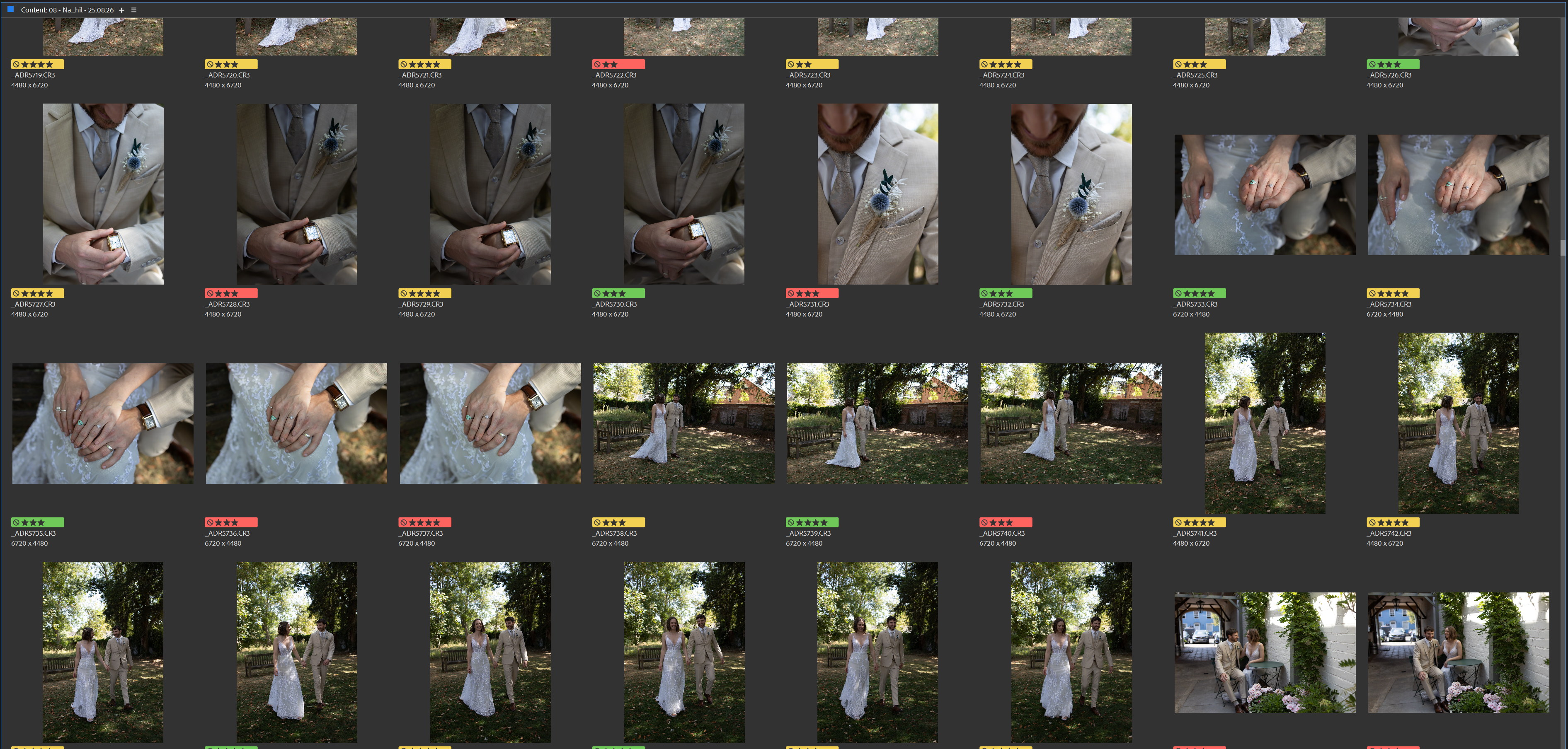
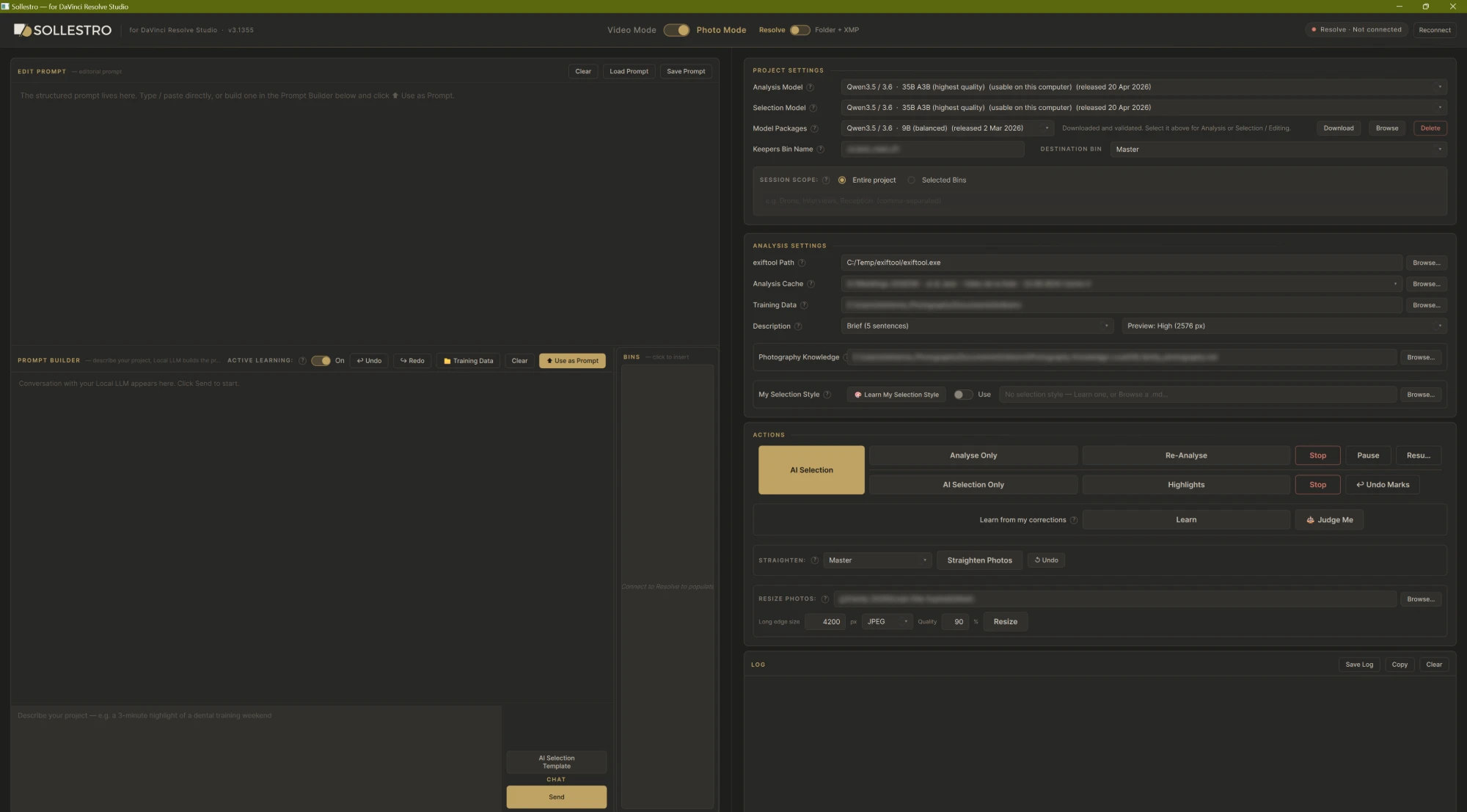
Select a varied gallery from this event. Include the speakers, audience, venue and key interactions. Aim for about 100 photos. Avoid near-identical frames and test shots. Keep a smaller highlights set for a quick preview.
Sollestro marks the selected photographs for review. The target count guides the selection; check the final number and coverage yourself. No photos are deleted.
Want a selection like this from your own shoot? Ask the Sollestro assistant.
Each shoot needs its own brief. State what your client needs, and review the marks against that job rather than relying on a generic idea of the best photo.
Not sure how Sollestro handles your type of shoot? Ask the Sollestro assistant.

I built Sollestro to take on the first pass through a large photo shoot while leaving the final selection with the photographer. You can see and change its marks, then finish the gallery in your usual software. If you contact support, you reach the person who builds the software.
Try the 3.1 Beta free for 30 days. The $199 one-off licence includes all future major versions. Local AI photo selection has no per-job charge.
One payment. All future major versions included.
Get a free 3.1 Beta key from Lemon Squeezy. It works for 30 days and does not turn into a paid subscription automatically.
Get the free 30-day betaThe same tools are also offered for $19 per month or $149 per year. Check the final terms and tax at checkout.
View storeSollestro charges no separate fee for each Local AI job. You provide the computer, model storage and electricity.
Your licence includes both modes. See Sollestro for videographers. Questions about the free beta or licences? Ask the Sollestro assistant.
No. You can select directly from a folder. To inspect ratings and labels after a folder run, open them in compatible photo software. Resolve is needed only for the Resolve route.
It does not delete rejected photos. RAW marks are written to separate XMP sidecar files. Supported JPEG, TIFF and PNG marks can be written into those files.
The Local AI workflow processes them on your computer. Model downloads and licence checks use the internet.
State a target in your brief. Then check the count, coverage and choices before delivery.
You can ask Sollestro for a smaller selection alongside the main gallery, for example for a client preview. Review those choices too.
No. Change the marks first, then click Learn (Learn from my corrections) if you want those choices saved for later work. Separately, Active Learning picks up standing "always" and "never" preferences from the briefs you type, announces each one in the Log and lets you undo it, or switch it off.
Windows x64, with engines for NVIDIA, AMD and Intel graphics, and Apple Silicon Macs with macOS 13 or newer. Intel Macs are not supported. Choose a model that fits the computer using Sollestro's Model Packages advice.
Model Packages offers one combined vision-and-text model in three sizes: 35B A3B (highest quality), 9B (balanced) and 4B (lighter). Sollestro marks the size it recommends for your computer. One download can be chosen for both Analysis and Selection.
Not yet. The Sollestro assistant, the gold chat button at the bottom right of any page, gives a step-by-step guide for every feature instead: ask it how to do something and it lists each click in order, with what you should see at the end. The user guides for Windows and Mac cover the main workflows too.
Get a step-by-step guide
Ask the Sollestro assistant, using the gold chat button at the bottom right of any page. It knows every button and setting in Sollestro 3.1 Beta, from installing and choosing a model to AI Selection, Highlights and Folder + XMP marks. For your order or licence, email hello@sollestro.com.
Ask the assistant
