Sollestro 3.1 Beta is here, free for 30 days.
Get the free beta · What's new · Step-by-step help from the assistant
Free for 30 days with the 3.1 Beta. $199 one-off licence, all future major versions included.
Sollestro is an AI video editor for DaVinci Resolve Studio that runs on Local AI: a local LLM on your own computer, not in the cloud. Choose your clips in Resolve, describe the film you want, and Sollestro builds a new, editable timeline in your open project. You review it and finish the edit.
Because the AI is local, there is no per-job charge and no credits to buy, and your footage, transcripts and instructions stay on your computer. You only need the internet to download the AI model and to check your licence.
Windows x64 or Apple Silicon Mac (macOS 13 or newer). Video editing requires DaVinci Resolve Studio 21 or newer. The AI model is a separate download inside the app.
The one-off licence includes all future major versions. You do not buy credits for each new shoot, edit or revision in Local mode.
The Local AI model works with your footage, available transcripts and brief on your machine. Downloading a model and checking your licence still need an internet connection.
Sollestro works through every readable clip you include. It examines sampled frames from each clip and available transcript text, rather than only a small selection of files. Clips longer than two minutes are analysed in one-minute parts. It does not inspect every frame.
Describe the purpose, people, scenes, order and exclusions for this job. Sollestro uses those instructions to build a video first cut, rather than only tagging clips.
Sollestro builds a normal, editable timeline in your open DaVinci Resolve Studio project. You can keep editing in Resolve.
Use a different brief for a wedding, interview, event, commercial film, property film or documentary. Load the matching Videography Knowledge file, one of 61 genres included, and Sollestro follows that genre's standards wherever your brief is silent.
Sollestro examines footage and assembles a first cut. You spend your time judging the choices and finishing the film.
Lucian Paraian designed Sollestro from his experience filming, editing and delivering client work. The final editorial decisions remain yours.
Wondering whether Sollestro suits your kind of work? Ask the Sollestro assistant, the chat button at the bottom right of every page.
Choose the material, give Sollestro clear instructions and keep the result in Resolve. These are the tools available for a video job.
No video tutorials yet, so the Sollestro assistant walks you through any of these step by step. Pick one: analyse your clips · write a brief from a template · make your first AI Edit · use interviews · add B-roll cutaways · keep moments on camera · cut to music · make another version · remix an edited film · teach it your style · get a review of the shoot.
Video editing details · Writing a video brief · Windows guide · Apple Silicon Mac guide · Ask the assistant how any feature works
Install the 3.1 Beta, enter your free beta key or licence key, then download a compatible AI model from Model Packages. Check the app's advice for your computer.
Keep Resolve running with an empty timeline open, and choose the whole project or the bins Sollestro should consider. Load the Videography Knowledge file closest to the job: Sollestro needs one before it analyses or edits.
Write what the video must communicate, who and what it should show, its approximate length and anything to exclude, or fill in the AI Edit Template. Read and change the instructions before running the edit.
Sollestro analyses clips it has not already saved and builds a new timeline in your open project. It shows progress and files it could not read in the Log.
Check coverage, statements, shot order, timing, music and the ending. Make the final creative and technical changes in Resolve.
Some high-resolution or RAW footage needs suitable proxies for frame extraction. The Log identifies clips Sollestro could not read. How to download a Local AI model · Stuck on a step? Ask the Sollestro assistant, which knows every button and setting in 3.1 Beta, or have it walk you through your first edit step by step.
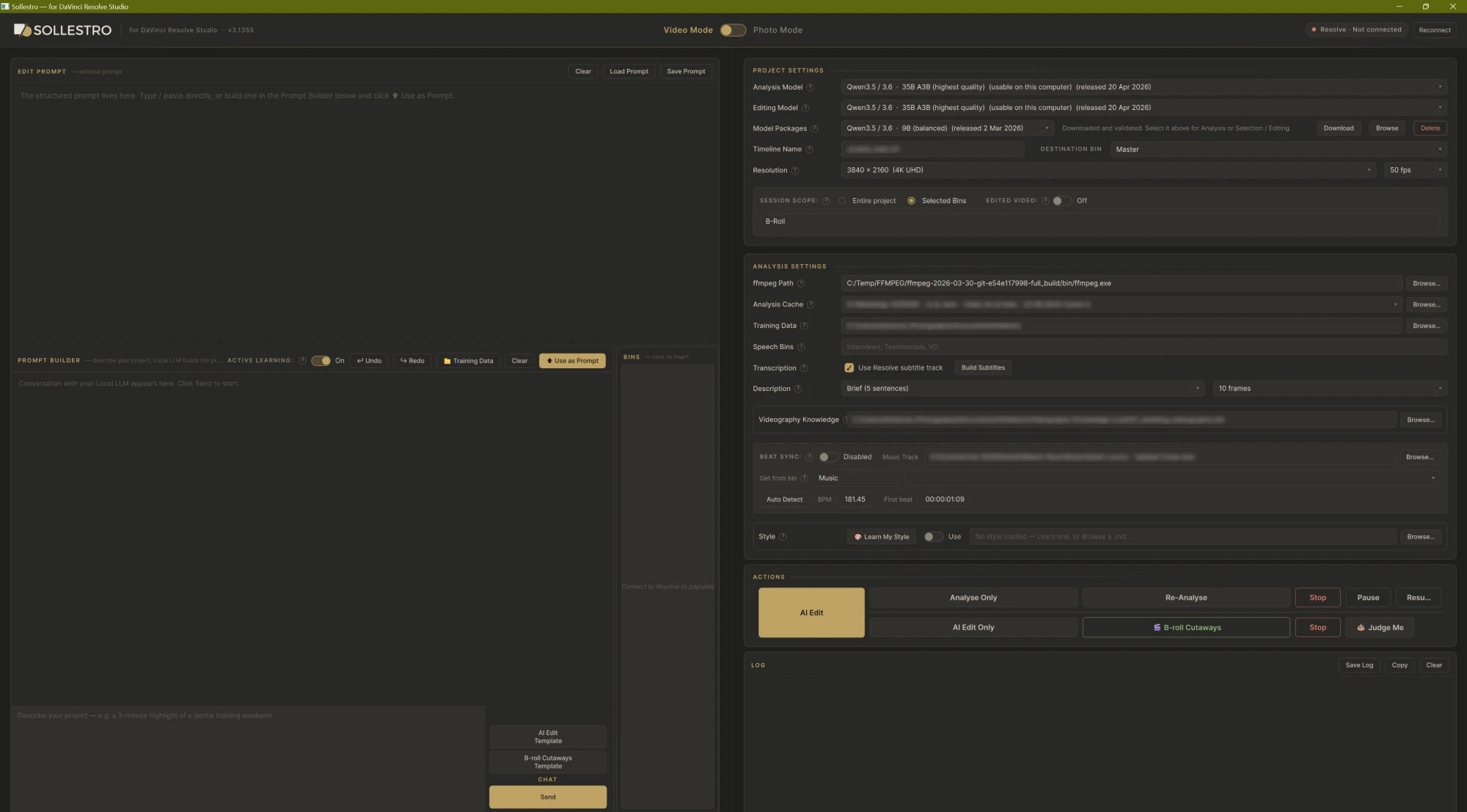
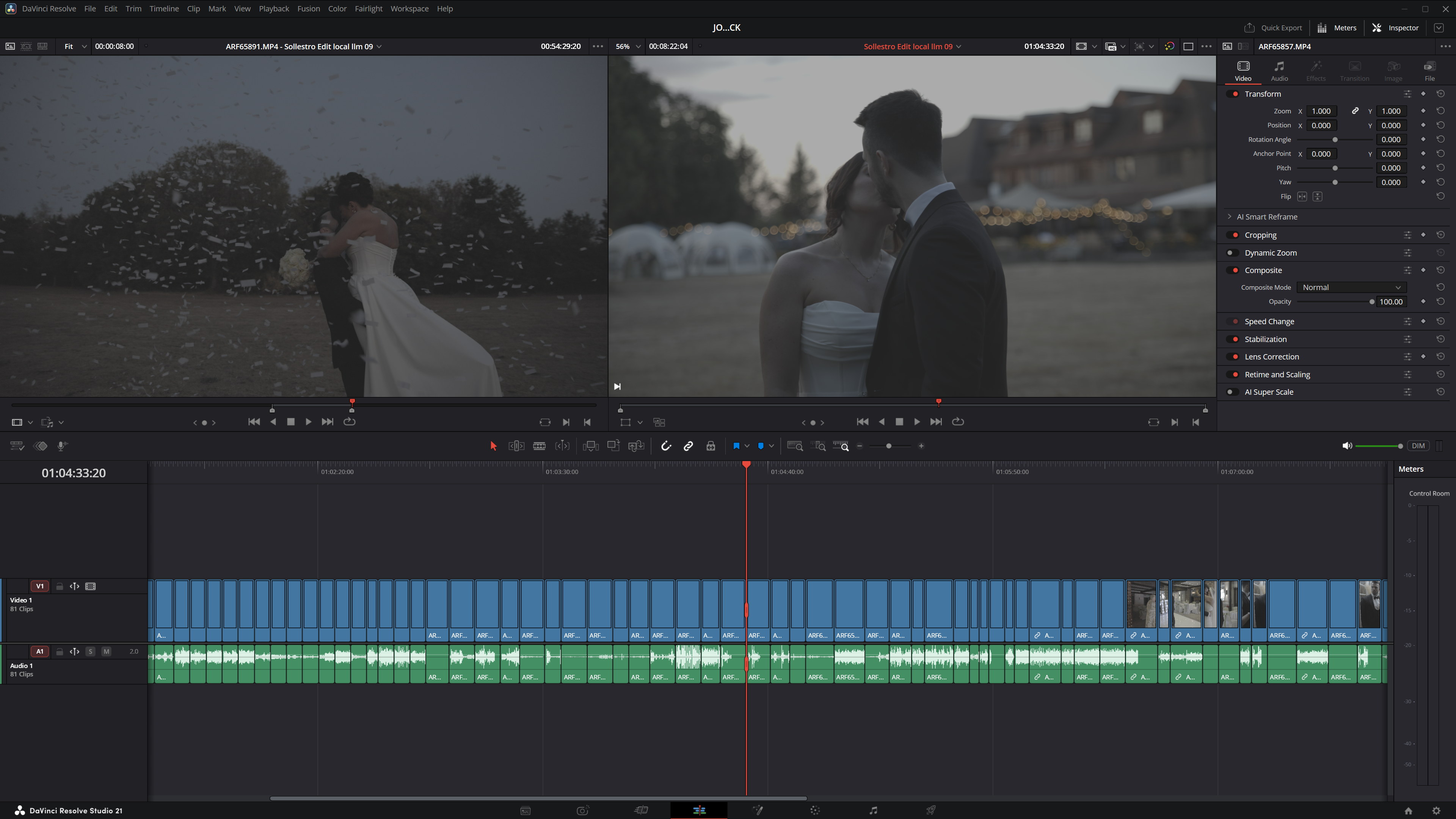
Make a 90-second recruitment film. Open with the strongest line about the team, show the people doing the work, then end with the invitation to apply. Use the workshop footage. Leave out test takes.
Sollestro proposes a first cut from the selected material and places it on a Resolve timeline. The result depends on the footage, available transcripts and the brief. Review the complete edit before client delivery.
Want a result like this from your own footage? Ask the Sollestro assistant.
The same controls can be used for different jobs because you choose the source footage and write the brief. A short social edit and a long interview need different instructions and review.
Not sure how Sollestro handles your type of project? Ask the Sollestro assistant.

I built Sollestro to help with the first pass through a large shoot and the first assembly in Resolve. It is designed to leave the edit open for a person to review and finish. If you contact support, you reach the person who builds the software.
Try the 3.1 Beta free for 30 days. The $199 one-off licence includes all future major versions. Local AI video editing has no per-job charge.
One payment. All future major versions included.
Get a free 3.1 Beta key from Lemon Squeezy. It works for 30 days and does not turn into a paid subscription automatically.
Get the free 30-day betaThe same tools are also offered for $19 per month or $149 per year. Check the final terms and tax at checkout.
View storeSollestro charges no separate fee for each Local AI job. You provide the computer, model storage and electricity.
Your licence includes both modes. See Sollestro for photographers. Questions about the free beta or licences? Ask the Sollestro assistant.
Yes, for video editing. Sollestro creates the edit in an open Resolve Studio project. Set External Scripting to Local so the app can connect.
The Local AI workflow processes them on your computer. Model downloads and licence checks use the internet.
No. It works through every readable clip you select and uses sampled video frames and available transcript text. Check the Log for anything it could not read.
Put the interview clips in your Speech Bins and keep Use Resolve subtitle track ticked. Sollestro reads what is said from Resolve's subtitles and cuts speech on whole sentences. Review the chosen statements and their timing in the finished timeline.
Treat it as a first cut. Watch the whole video and finish the editorial, sound, colour, titles and export in Resolve.
Yes. The result is an editable Resolve timeline. You can also revise the brief and make another version from suitable saved analysis.
Windows x64, with engines for NVIDIA, AMD and Intel graphics, and Apple Silicon Macs with macOS 13 or newer. Intel Macs are not supported. Choose a model that fits the computer using Sollestro's Model Packages advice.
Model Packages offers one combined vision-and-text model in three sizes: 35B A3B (highest quality), 9B (balanced) and 4B (lighter). Sollestro marks the size it recommends for your computer. One download can be chosen for both Analysis and Editing.
Not yet. The Sollestro assistant, the gold chat button at the bottom right of any page, gives a step-by-step guide for every feature instead: ask it how to do something and it lists each click in order, with what you should see at the end. The user guides for Windows and Mac cover the main workflows too.
Get a step-by-step guide
Ask the Sollestro assistant, using the gold chat button at the bottom right of any page. It knows every button and setting in Sollestro 3.1 Beta, from installing and choosing a model to AI Edit, B-roll Cutaways and Beat Sync. For your order or licence, email hello@sollestro.com.
Ask the assistant
